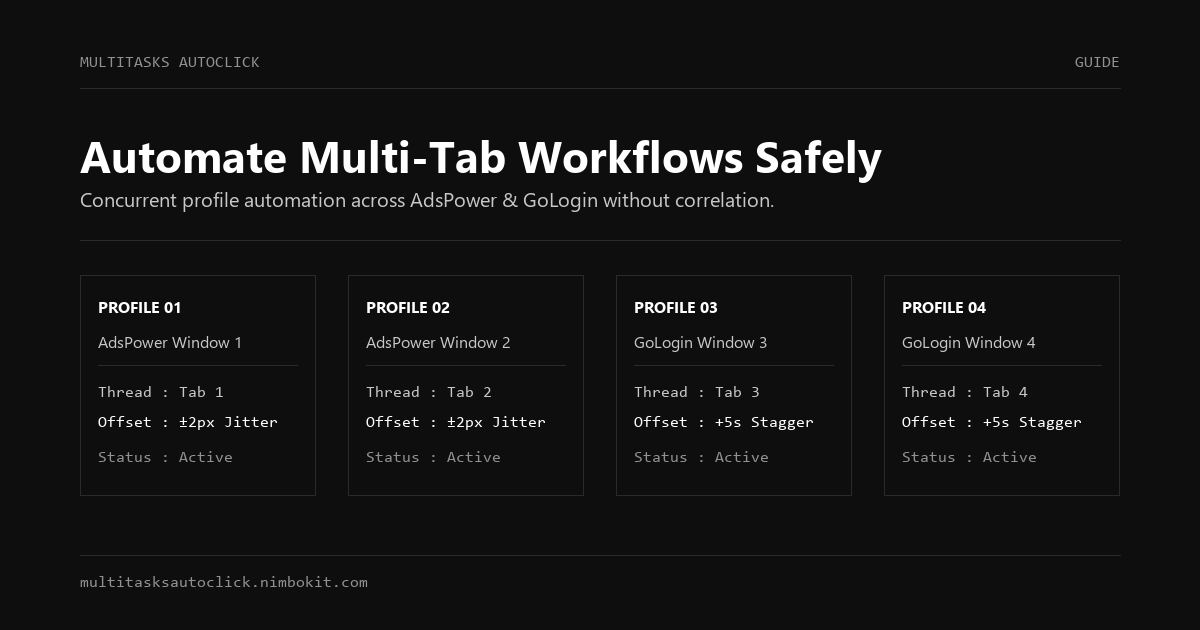
Anti-detect browsers such as AdsPower, GoLogin, MoreLogin, and Octo Browser are essential tools for managing isolated digital identities. By isolating cookies, local storage, Canvas fingerprints, and residential proxies, they prevent platforms from linking multiple accounts together.
However, anti-detect browsers only solve half the equation: they disguise your digital fingerprint, but they do NOT automate your physical actions.
If you manually perform repetitive tasks across 20 or 50 browser profiles every single day (e.g., claiming testnet faucets, daily web3 check-ins, social interactions, or batch form submissions), it drains hours of productive time. Worse, if you use a crude auto-clicker to automate these windows, mechanical click patterns can trigger behavioral anti-bot filters and get your entire profile cluster blacklisted.
In this guide, you will learn how to automate concurrent multi-tab workflows safely on Windows using human-simulated desktop automation.
3 Critical Rules for Anti-Detect Automation
Before configuring any automation software with AdsPower or GoLogin, keep these rules in mind:
- Never Click Fixed Coordinates Across Multiple Profiles:
If Profile 1 and Profile 10 click the exact same pixel (X, Y) at the exact same millisecond interval, server-side fraud engines will correlate your accounts despite different IP addresses.
- Always Enforce Coordinate Micro-Jitter (
±2px):
Introduce hardware sub-pixel randomization to emulate physiological finger tremors.
- Use 100% Offline Automation Tools:
Never use cloud-connected macro extensions that require "all web data" permissions, which could expose session tokens or private wallet keys.
Step-by-Step Workflow Setup
[Screen Layout]
┌───────────────────────┬───────────────────────┐
│ AdsPower Profile #1   │ AdsPower Profile #2   │
│ Tab 1 Automation Loop │ Tab 2 Automation Loop │
├───────────────────────┼───────────────────────┤
│ AdsPower Profile #3   │ AdsPower Profile #4   │
│ Tab 3 Automation Loop │ Tab 4 Automation Loop │
└───────────────────────┴───────────────────────┘
          ▲
          │ Controlled by
[Multi-Task AutoClick Studio]
- Independent Multi-Tab Execution
- Micro-Jitter (±2px) & Gaussian Delays
- 50ms Emergency Stop (ESC)
Step 1: Arrange Your Browser Windows (Tile Windows)
- Open your target profiles in AdsPower or GoLogin (for example, 4 profiles for a 4-quadrant layout on a 1080p/1440p monitor).
- Use Windows Snap (
Win + Left/Right/Up/Down Arrow) or the browser's built-in window tiling feature to dock each profile into a fixed quadrant.
Step 2: Open Multi-Task AutoClick Studio
- Launch Multi-Task AutoClick Studio on Windows.
- The studio interface provides multi-tab script management, allowing each browser profile to have its own independent sequence.
Step 3: Capture Target Coordinates
- Hover your mouse cursor over the first target button (e.g., "Connect Wallet" or "Claim Faucet" in Profile 1).
- Press the
Spacekey on your keyboard. The application instantly captures the exact(X, Y)coordinate without accidental mouse displacement. - Select the desired action (Left Click, Right Click, Double Click, Text Input, or Key Press).
Step 4: Configure Human Simulation (Micro-Jitter & Delay)
- Under the settings panel, enable Micro-Jitter and set the deviation to
±2px. - Set the click delay to a realistic range: e.g., Base Delay: 400ms, with a Random Jitter:
±150ms(producing dynamic intervals between 250ms and 550ms). - Repeat this process for each tab corresponding to your open browser profiles.
Step 5: Test Execution & Verify the 50ms Emergency Killswitch
- Press
F5to start the automation sequence. - Watch the cursor navigate between profiles. Notice how the clicks gently vary around the target button rather than locking onto a frozen pixel.
- Test the safety killswitch: Press the
ESCkey at any point. All running threads terminate within 50ms and mouse control is instantly returned to your hand.
Free Template Scripts
To help you get started without building workflows from scratch, our team maintains open-source sample templates on GitHub for common multi-profile tasks:
- Daily Testnet Check-In Script: Automated login and transaction signing workflow.
- 24-Hour Faucet Claimer: Periodic faucet claim routine with randomized rest periods.
- Multi-Account Profile Switcher: Sequential activation routine for 10+ profiles.
Download these templates for free from our GitHub repository:
👉 Awesome Human-Simulated Automation Templates
Conclusion
Automating multi-account profiles does not have to be a choice between tedious manual labor and dangerous account bans. By combining the identity isolation of anti-detect browsers with the biological simulation of Multi-Task AutoClick Studio, you can scale your daily workflows with complete peace of mind.
Put Human Simulation into Practice
Run multi-tab automation with built-in micro-jitter (±2px), Gaussian delays, and 50ms emergency stop on Windows 10/11.